


The official Blooket dashboard is dashboard.blooket.com. If you need to sign in first, use the official Blooket login page. If you only have a game code and want to join a live session, use Blooket Play instead. The Play page is for entering a Game ID; the dashboard is the signed-in account workspace.
Teacher and student accounts also show different controls, so the dashboard you see depends on your account type.
Which Blooket page do you need?
| Task | Official Blooket destination |
|---|---|
| Open your account dashboard | Blooket Dashboard |
| Sign in to your account | Blooket Login |
| Join a live game with a Game ID | Blooket Play |
| Visit Blooket’s public site | Blooket.com |
The current login page supports a username or email with a password, as well as Google sign-in. Students do not need an account simply to join a live game. Blooket also says students can complete current homework assignments without signing in, although an account adds persistent features such as stats and account progress. Blooket explains the live-game requirement in its student account guidance.
What teachers can do from the dashboard
Blooket’s current teacher interface includes Create, Discover, My Sets, Favorites, History, Homework, Play and Settings.
Those areas support the main teacher workflow: create or find a question set, host it live or assign it as homework, then return to History to review results.
Create or find a question set
Teachers can work with their own sets through My Sets or browse public material through Discover. Blooket’s teacher quick-start guide says its Discover library contains more than 20 million question sets.
That figure refers to question sets, not users. Claims elsewhere that Blooket has “20 million users” are not established by the current first-party material.
Host a live game
From a selected question set, teachers can choose Host, select a game mode, adjust the available settings and start the session. Blooket can then provide a game code, QR code or join link for participants.
Blooket’s own help pages currently disagree on whether a game code contains six or seven digits, so the practical instruction is simply to enter the Game ID provided by the host.
Assign homework
Teachers can also assign supported Blooket activities as homework and set a due date. Current Blooket Plus documentation says Starter accounts can set a homework deadline up to 14 days ahead, while Plus extends that window to 365 days.
Students can open a homework assignment without being signed in. The process is covered in Blooket’s homework joining guide.
Where to find Blooket History and reports
For previous hosted games, teachers can go to Dashboard → History.
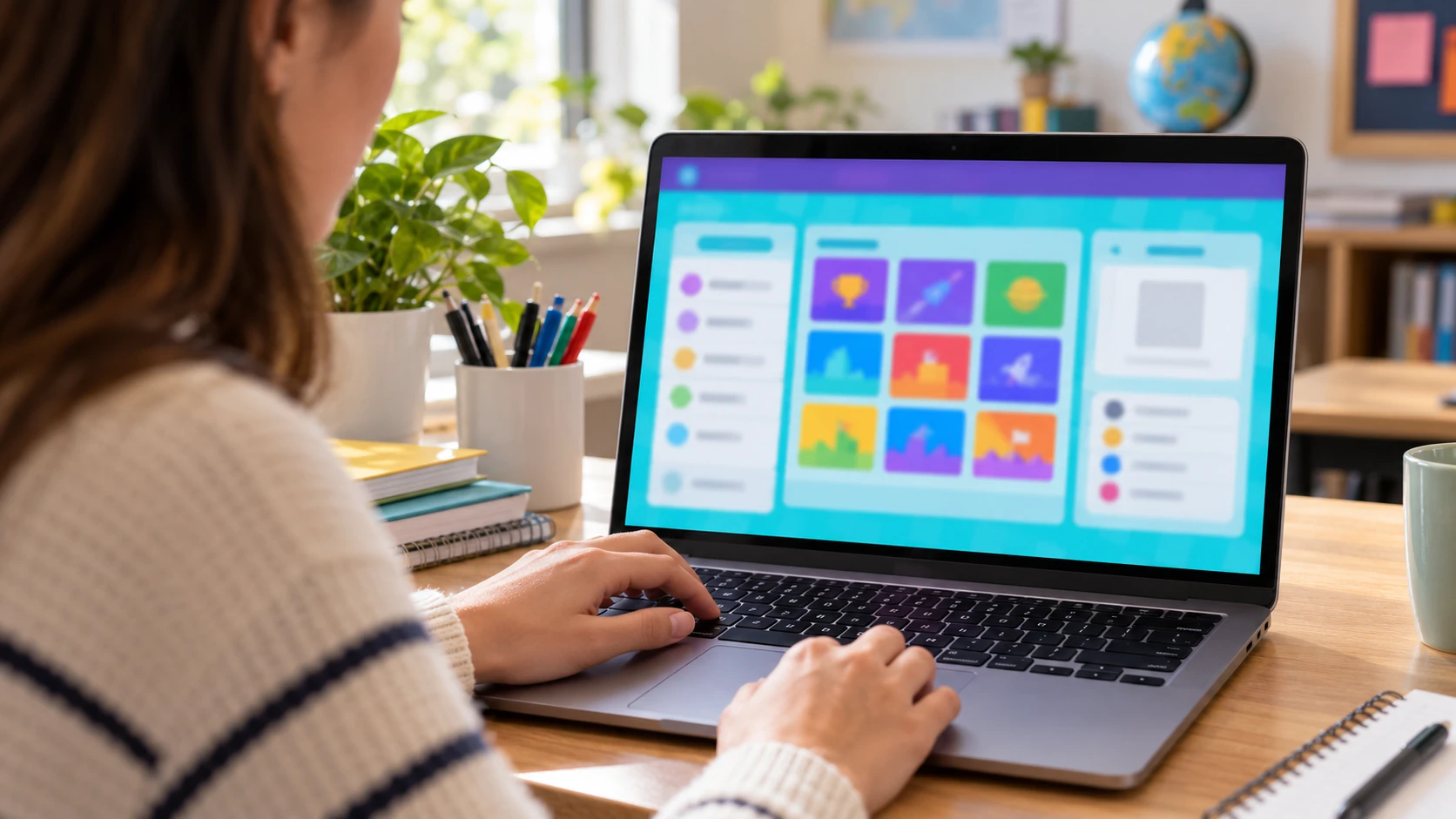
According to Blooket’s report documentation, History can show the game mode, question-set title, number of players and date played. Selecting a game opens its report.
Current reports can include class-level accuracy, correct and incorrect answers, participant counts and leaderboard information. Blooket Plus adds deeper reporting tools such as question-level breakdowns, individual student reports and spreadsheet downloads.
Blooket also notes that older games may not contain the full set of redesigned report fields, so a thinner historical report does not necessarily mean data is missing because of an error.
What students see on their dashboard
The student view is different from the teacher dashboard. Blooket’s current student interface includes Play, Stats, Blooks, Market, Discover, Set Creator, My Sets and Favorites.
That distinction matters because some older or unofficial guides say students cannot create their own question sets. Blooket’s current student navigation includes Set Creator and My Sets, and its student Help Center documents question-set creation.
Students can also use the Market. Blooket’s Blooks and Market guide says Market items use tokens earned through gameplay rather than real-money purchases.
Can you switch between Teacher and Student accounts?
Yes. Blooket currently allows users to switch account type through Settings.
Its account-type guide explains how to change between Teacher and Student accounts. That makes older claims that the role chosen at signup is permanent inaccurate for the current service.
Is the Blooket dashboard free?
Blooket offers a free Starter tier and a paid Plus tier.
For dashboard use, the main differences involve limits and advanced features rather than basic access. Current Blooket documentation says Starter supports up to 60 players in a live game, while Plus supports up to 300, subject to exceptions for some modes.
Plus also adds features such as enhanced reports, folders, additional game modes and longer homework deadlines. The current breakdown is listed on Blooket’s Plus features page.
Older articles may show different player limits. Those figures can become stale as Blooket changes its plans, so current Blooket documentation should take precedence.
What is the Group Plan Dashboard?
Blooket also has a separate dashboard area for Plus Group Plan administrators.
This is not the ordinary teacher or student dashboard. Blooket’s Group Plan Reports overview describes administrator reporting that can include games hosted, student participants, questions answered and teacher-level activity.
Most individual teachers and students will not need this area unless they are part of a managed group plan.
What to do if the Blooket dashboard is not working
If the dashboard, login or hosting flow is not working, first confirm that you are using an official Blooket domain.
Blooket’s technical troubleshooting guide recommends steps such as closing unnecessary tabs, trying a private or incognito window, checking cached browser data and reviewing hardware-acceleration settings.
Blooket also provides a network diagnostic page at `debug.blooket.com`. Its support material notes that browser extensions can interfere with the service and that school or network filters can block resources needed for joining or hosting.
If the problem appears to affect multiple users rather than one device or network, check the Blooket service-status page. On October 6, 2026, Dashboard, Authentication, Hosting and Homework were shown as healthy, but live service status can change.
Blooket dashboard FAQ
Do students need an account to join a game?
No. Blooket says students can join live games without an account. An account is useful for saved progress and account-based features, but it is not required simply to enter a hosted game.
Can students create their own Blooket sets?
Yes. Blooket’s current student interface includes Set Creator and My Sets, and its student Help Center includes instructions for creating question sets.
Where are old Blooket game results?
Teachers can find previous hosted games under History. Selecting a game opens its report.
Which report features require Blooket Plus?
Current Plus-only reporting features include question-level breakdowns, individual student performance reports and spreadsheet downloads.
Can I change my account from Student to Teacher?
Yes. Blooket currently allows account types to be switched through Settings.
Why does my dashboard look different from someone else’s?
Teacher and Student accounts use different navigation, while Plus and Group Plan features can add capabilities that are not available to every account. Blooket can also change its interface over time.